Overview
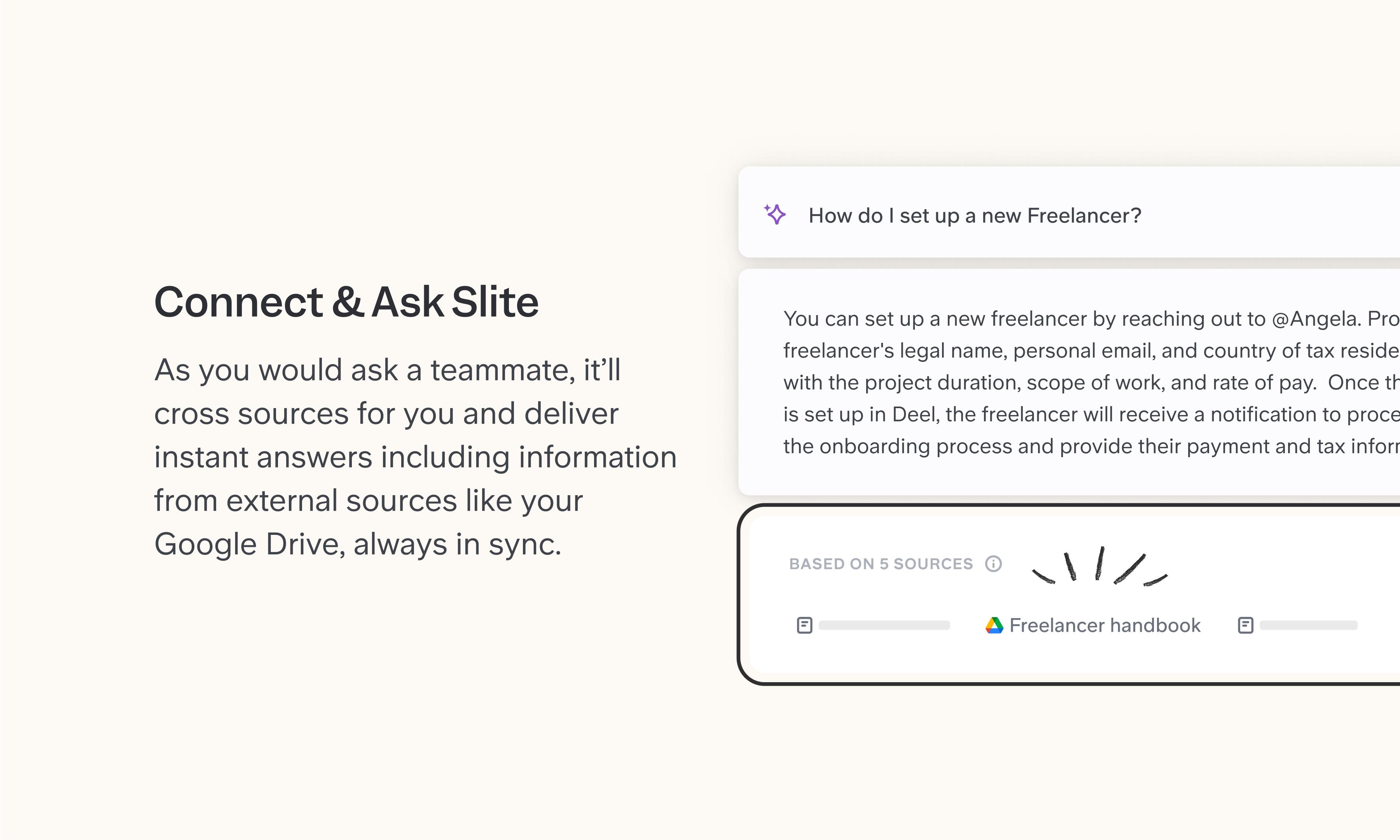
Adding Google Drive as an external source to Slite enhances your knowledge base. It enables Slite's Ask to draw from Google Docs and PDFs, giving you a broader range of information to work with and improving the overall quality of responses.
How it works
- Go to Workspace Settings > External Sources in Slite.
- Click "Add external source" and select Google Drive from the list of available options.
- Follow the prompts to authenticate and connect your Google Drive.
- Choose which Google Drive folders you want to sync with Slite's Ask feature.
- Set permissions for who can access the synced content in Slite.
- Once connected, Slite's Ask will include relevant Google Drive content when answering your queries.
Remember, Google Drive content syncs every 6 hours, but you can manually sync if needed. Only Google Docs, .docx files, and PDFs will be synced. You can manage or remove the Google Drive connection anytime from the External Sources settings.
Built by
Slite
Categories
Collaboration
Productivity




©2026 Slite, Inc.